How Do You Get Airdrop On A Mac

There’s a specific kind of magic that happens when you’re on a deadline, a photo needs to jump from your iPhone to your Mac, and you realize you’ve left your cable in another...

There’s a specific kind of magic that happens when you’re on a deadline, a photo needs to jump from your iPhone to your Mac, and you realize you’ve left your cable in another room. You don’t panic. You don’t email it to yourself. You just breathe, click, and whoosh—the file materializes. That’s AirDrop, and it’s one of those Apple features that feels like a cheat code for daily life.
But let’s be real for a second: if you’re new to the ecosystem, or you’ve just never bothered to find the button, AirDrop can feel like a secret handshake nobody taught you. This isn’t a tech tutorial. This is a guide to a better, smoother, more connected version of your afternoon.
The first thing to know is that AirDrop is Bluetooth and Wi-Fi working together like a very efficient, tiny, invisible courier service. Your Mac uses Bluetooth to “see” nearby devices and Wi-Fi to actually fling the data through the air. It’s fast, it’s secure, and it feels a little bit like magic—even if the science is just good engineering.
Must Read
The Finding Game: Where is AirDrop Hiding?
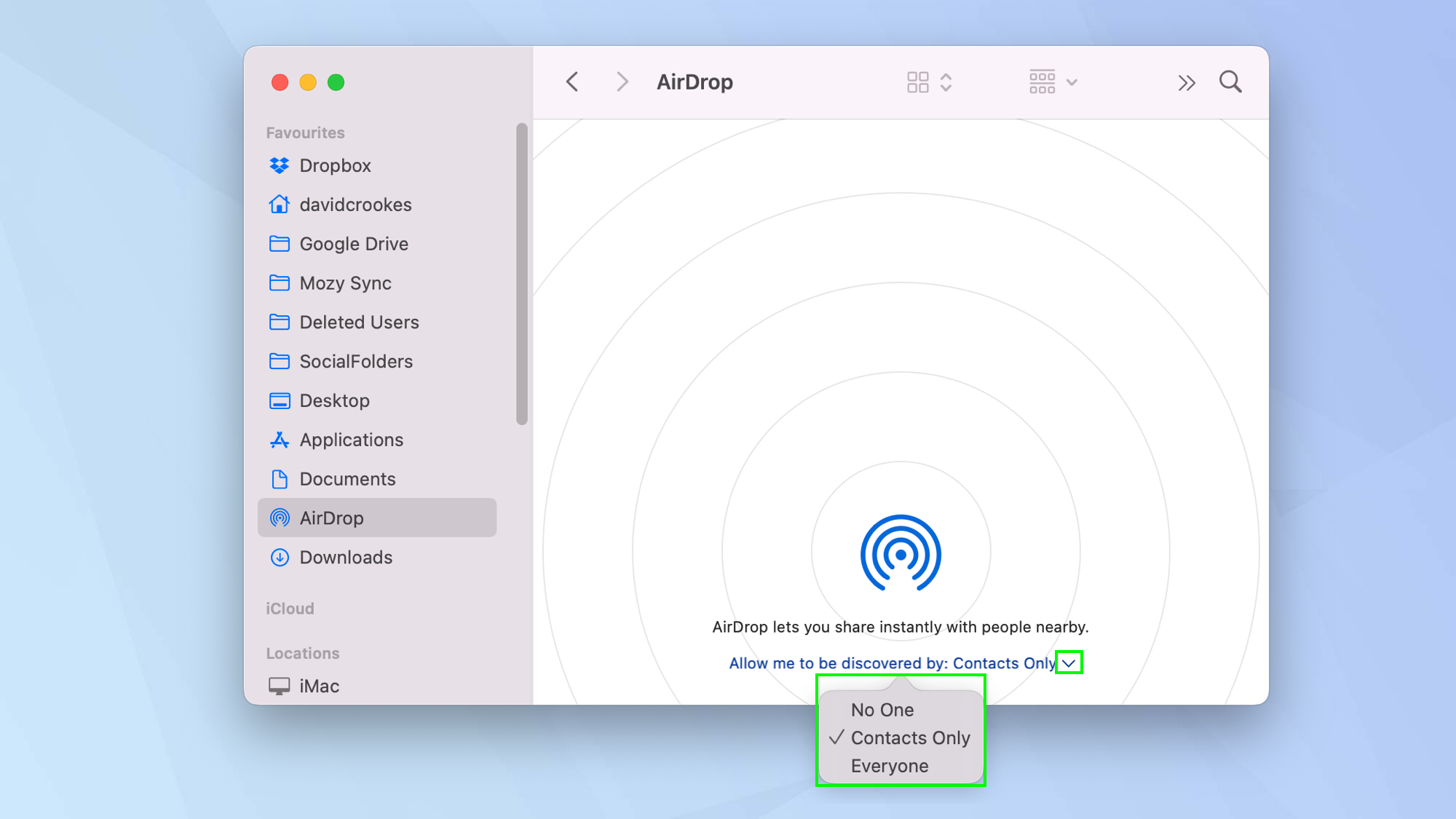
On a Mac, the AirDrop portal is tucked inside the Finder—Apple’s file browser that looks like a smiling blue face. Open a new Finder window (click the icon in your Dock) and look for AirDrop in the left-hand sidebar. If you don’t see it, go to the top menu, click Finder > Settings > Sidebar, and check the box next to AirDrop.
Once you click that sidebar option, your Mac starts scanning the room like a friendly robot detective. A window will pop up showing nearby devices that are “visible” and ready to receive. It’s a little like looking at a radar screen, but instead of submarines, you see your friend’s iPhone or your iPad.
Pro tip: If you don’t see any devices, don’t blame the Wi-Fi right away. Make sure both devices have Bluetooth turned on and Wi-Fi active. They don’t need to be on the same network, which is the secret sauce—AirDrop creates its own tiny, temporary network between the two devices.
The Visibility Trio: Everyone, Contacts, or Receiving Off
This is where most people trip up. Your Mac can be set to “Discoverable by” three different groups. Everyone means any Apple device nearby can see you—great for parties or sharing a quick file with a stranger at a coffee shop. Contacts Only means only people in your iCloud Contacts list can see you.
The default setting is often “Contacts Only,” which is why your mom can never find you. If you’re trying to send a file to a friend and they can’t see you, tell them to switch to Everyone for a moment. It’s a social dance of digital proximity. Once the transfer is done, you can switch it back for privacy.
You can find this setting right inside the AirDrop window, at the bottom, labeled “Allow me to be discovered by:”. It’s a small dropdown, but it controls the entire vibe of your sharing life.
 How to use AirDrop on Mac | Tom's Guide
Fun little fact: AirDrop was originally developed by Apple engineers who wanted to replace the clunky process of exchanging files via email or USB drives. They named it “AirDrop” as a nod to the act of airdropping supplies from an airplane—except here, it’s cat photos and PDFs.
The Transfer: How to Actually Send a File
Say you’ve got a hilarious screenshot on your iPhone and you want it on your Mac for a meme edit. You pull up the photo, tap the Share icon (that square with an arrow pointing up), and look for the AirDrop icon in the row of share options. It looks like a series of concentric circles.
Your phone will display a radar screen with the name of your Mac—usually “MacBook Pro” or whatever you’ve named it. Tap that name. Your Mac will immediately ping a notification asking if you want to Accept or Decline. Click Accept, and the file drops into your Downloads folder, ready to be used.
For the reverse—from Mac to iPhone—right-click a file on your Mac, select Share > AirDrop, and click your iPhone’s name. It’s nearly identical, just flipped. The sheer speed is what gets you. A 50MB video file can transfer in seconds, while email would take a small eternity.
What To Do When the Magic Fails
Sometimes AirDrop glitches. It’s rare, but it happens. If you’re staring at a spinning wheel, first check that both devices are unlocked and awake. Then, toggle Bluetooth off and on again on both devices. It’s the digital equivalent of tapping a TV to get the picture back.
Another trick: open the AirDrop window on your Mac and hold your iPhone closer. Seriously. The Bluetooth signal strength matters, and sometimes you’re just two feet too far away. It’s not a strong range—usually about 30 feet max, and ideally closer to 10.
 Common MacBook AirDrop Issues Problems and Their Solutions
If all else fails, restart both devices. It’s cliché, but it works. The vast majority of AirDrop “failures” are just the devices having a small miscommunication about their identities. A restart clears that up like a deep breath on a stressful morning.
Cultural reference alert: Remember the 2017 iPhone X launch event where the demo of FaceID failed on stage? AirDrop is notoriously reliable in comparison. It’s one of the few features Apple has polished to a near-perfect shine over a decade.
The Little Details That Make a Big Difference
AirDrop isn’t just for photos and files. You can AirDrop links from Safari, locations from Maps, notes from the Notes app, and even entire contact cards. It’s a bread-and-butter utility that redefines the word “share.”
There’s also a hidden gem: you can AirDrop entire folders from your Mac. If you have a whole project to move to a colleague’s laptop, just right-click the folder, hit Share, and pick their Mac. It keeps the structure intact, which is a lifesaver for designers and editors.
And for the privacy-conscious: AirDrop uses encryption. The files are transferred directly between devices without passing through Apple’s servers. It’s peer-to-peer, meaning your data stays local. Even Apple themselves can’t peek at your meme collection.
A Reflection for Your Daily Life
AirDrop is more than a feature; it’s a quiet reminder that technology can actually reduce friction. In a world where we’re bombarded with logins, attachments, and cloud storage fees, having something that just works—wirelessly, instantly, and gracefully—feels like a small act of resistance against complexity.
Next time you’re about to email a photo to yourself, pause. Open the Finder. Click AirDrop. Let the invisible courier do its thing. It’s a tiny moment of efficiency that frees up your brain for the things that matter: the actual work, the connection, the laugh you’re sharing. In the grand scheme of a chaotic day, that’s a quiet win worth having.
