How To Find My Username And Password For My Router

So, your internet went down, and now you’re staring at a router that looks like a plastic alien with blinking lights. You need to log in, but the username and password are hid...
So, your internet went down, and now you’re staring at a router that looks like a plastic alien with blinking lights. You need to log in, but the username and password are hiding like a cat on laundry day. Don’t panic—you’re not the first digital detective to hit this wall.
The Great Sticker Hunt
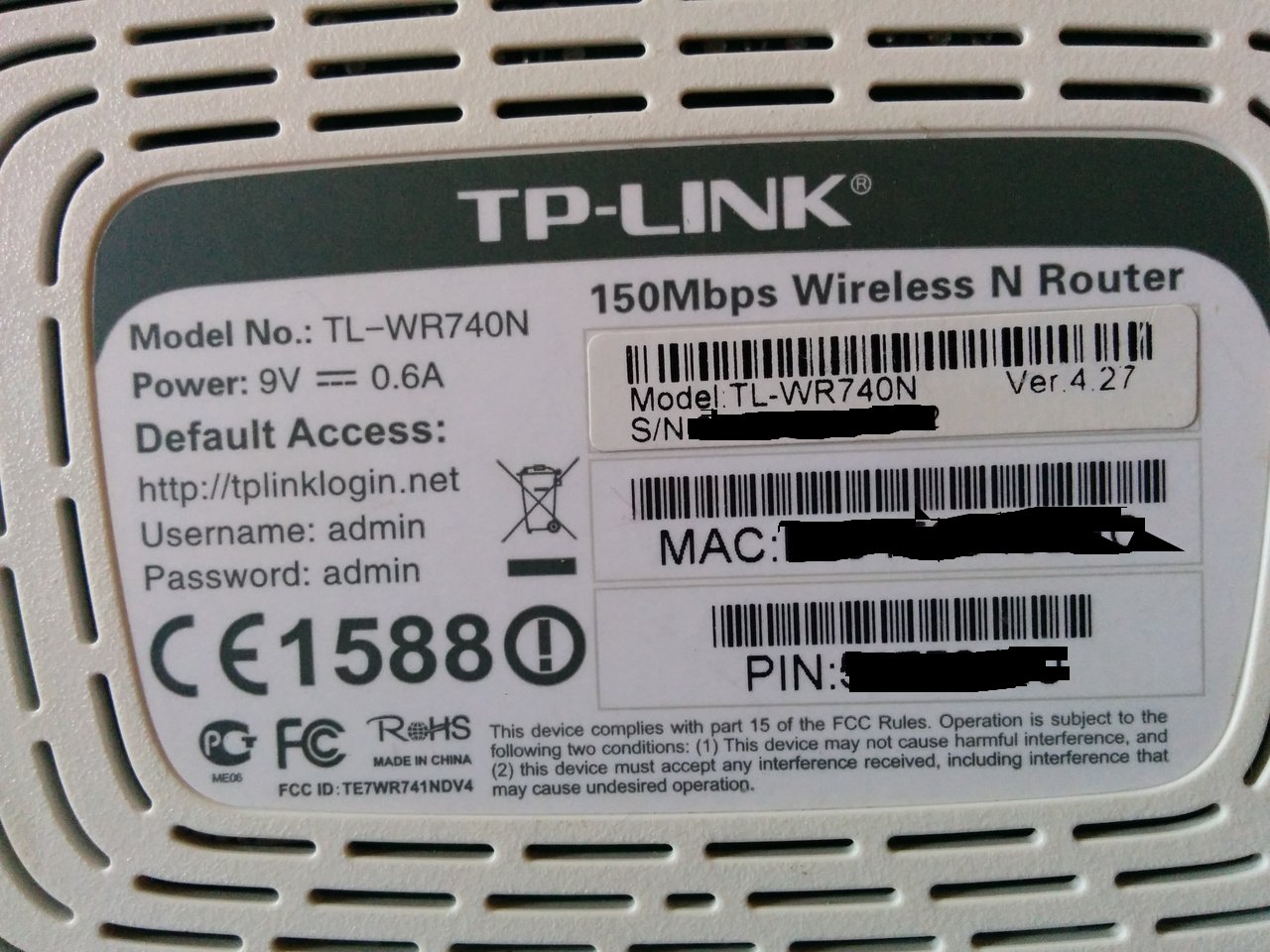
First, flip that router over like you’re looking for a winning lottery ticket. On the bottom or back, there’s often a sticker with “Username” and “Password” printed in tiny, mocking font. It’s usually something boring like “admin” and “password”—the banana peel of security.
If you see “admin/admin” or “admin/1234,” congratulations—you’ve found the keys to the digital castle. Surprisingly, 30% of routers still use default logins, according to a 2022 cybersecurity survey. That’s like leaving your front door unlocked and posting the combo on a billboard.
Must Read
But what if the sticker is missing, faded, or says something like “see manual”? The manual is probably in a landfill or under your couch with the missing remote. Don’t despair; you have backup plans that don’t involve tarot cards.
The Google Oracle and the Power of “Default”
Your router’s brand and model are your new best friends. Look at the model number—it’s usually a string of numbers and letters that looks like a license plate for a robot. Type that into Google along with the words “default username and password.”
You’ll likely find a site like RouterPasswords.com, which is basically the Wikipedia of lazy IT guys. For example, a Netgear router might have the login “admin/password,” while an older Linksys uses “admin/admin.” Fun fact: the most common router password in 2023 was still “admin”—which is the digital equivalent of using “abc123” for your email.
But here’s the kicker: if someone already changed the password, you’re playing a different game. You need to reset the router—which is the nuclear option, but it works every time.
The Paperclip Ritual (AKA Factory Reset)
Find a paperclip, a toothpick, or a really tiny screwdriver—something that can press into a pinhole on the router. Usually labeled “Reset” or hiding behind a little circular door, this is the router’s “reset button.” Press and hold it for 10 to 30 seconds while the lights do a frantic disco dance—this wipes all your custom settings.
Beware: this will erase your Wi-Fi name and any custom passwords. You’ll have to set up your network again, like rebuilding your digital Lego castle. But hey, you’ll definitely know the new username and password—they’re back to factory defaults.
Pro tip: take a photo of that sticker before you reset, or write the new info on a Post-it note and stick it to the router. Because trust me, you’ll forget it again by next Tuesday.
“The Cloud Coup” (Using the Router’s App)
Many modern routers have their own smartphone app—like TP-Link Tether or Netgear Nighthawk. If you installed it a year ago, it might still remember your login info for you. Check your phone’s app drawer; the app could be the hero that saves you from digging through your spam folder.
 how to find router username and password (No Reset Required)
If you’re logged into the app, you can often change the router password from there. Some apps even show you the current password in plain text—like a cheat code from the gods. But if you can’t get into the app either, you’re back to the paperclip ritual, and that’s okay.
One surprising fact: over 50% of people have never changed their router’s default password, according to a 2023 cybersecurity report. That’s like never changing the locks on your house because “it’s a lot of work.” Spoiler: it’s less work than getting hacked.
The Browser Backdoor (When All Else Fails)
Open a browser on a device connected to the router’s Wi-Fi. Type in the router’s IP address—usually 192.168.0.1 or 192.168.1.1. This is the digital address of your router’s brain. If you see a login page, you’re in the right neighborhood.
Try the classic combos: admin/password, admin/1234, admin/admin. If none work, check the sticker or Google your model again. Sometimes the password is literally “password” with a zero, like “password0”—because why not? It’s like your router is joking with you.
If you still can’t get in? Your router might be locked down like a Fort Knox from previous owners or you’re using the wrong IP address. In that case, run the command ipconfig (on Windows) or ifconfig (on Mac) to find your “default gateway.” That’s your router’s IP—and it’s the treasure map to your login.
The Grand Finale: Change That Password (and Write It Down)
Once you’re logged in, change the username and password immediately to something you’ll remember—or at least write on a sticky note next to your router. Use something like “MyRouter2024!”—not “cat123.” And please, for the love of Wi-Fi, don’t use “password” again.
A good password is at least 12 characters long, with a mix of letters, numbers, and symbols. Think of it like a beat-up old gym lock: a decent combo keeps the gym rats out. And if you ever forget again? Just remember the paperclip ritual is always waiting for you—like a loyal, blinking plastic friend.
Now go forth, log in, and enjoy your internet without the drama of a forgotten password. And if all else fails? Call your ISP and pretend you’re a helpless grandparent. They’ll reset it for you—probably while sighing into the phone.
