How Do I Remove Books From Kindle

Your Kindle library feels a bit like your kitchen junk drawer—overflowing with samples, abandoned thrillers, and that self-help book you bought at 2 a.m. We’ve all been there....

Your Kindle library feels a bit like your kitchen junk drawer—overflowing with samples, abandoned thrillers, and that self-help book you bought at 2 a.m. We’ve all been there. The good news? Clearing digital clutter is easier than folding a fitted sheet.
Removing books from your Kindle isn’t just about storage space; it’s about mental clarity. Think of it as a Marie Kondo moment for your e-reader. You want only the titles that “spark joy” (or at least a completed read).
Here’s the catch: deleting a book from your device isn’t the same as erasing it from your Amazon account. You have two distinct paths, each with its own vibe. Let’s walk through them with the ease of a Sunday afternoon.
Must Read
Path One: The Gentle Uncrowd
This is for when you just want the library shelf to look tidy. You’re not breaking up forever—just giving the book a temporary vacation. On your Kindle, long-press the book’s cover. A menu will pop up like a helpful butler.
Select “Remove from Device.” The book vanishes from your screen, but it still lives in your Amazon Cloud, safe and sound. Think of it as storing a book in a digital attic. You can download it again anytime, for free, as long as you own the title.
This is perfect for finishing a trilogy and letting the earlier volumes “rest.” Or for hiding that guilty-pleasure romance novel before your book club meets. A cultural wink: this is the digital equivalent of shelving a paperback spine-inward.
Path Two: The Permanent Farewell
Now we’re talking serious decluttering. Maybe you hated the ending. Maybe the author used too many adverbs. Whatever the reason, permanent deletion is your deep-clean button. You’ll need to visit your Amazon account on a web browser or the Kindle app.
Navigate to “Manage Your Content and Devices.” It’s Amazon’s backstage pass. Find the offending book, click the “Actions” button, and select “Delete.” A warning box will ask if you’re sure—because Amazon knows you might regret it.
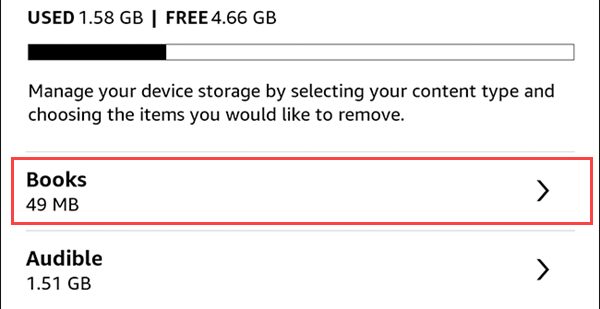 How to Remove Books From a Kindle
Once confirmed, the book is gone from your entire digital ecosystem. No cloud back-up, no second chances. This is the “I’m burning this in a ritual fire” move. Don’t do it to a book you might want to reread—unless you’re willing to buy it again.
A Fun Little Fact
Did you know that Amazon keeps a ghost copy of everything you’ve ever purchased? Even after deletion, it shows up in your digital purchase history as a “removed” item. It’s like the book’s tombstone in your online graveyard. Creepy? A little. Helpful? Absolutely, if you ever want to rebuy it on sale.
Another cultural nod: This is the same energy as that friend who deletes your number but still has your birthday memorized. Digital memory is sticky.
Practical Tips for the Minimalist Reader
Bulk delete is your friend. On Amazon’s “Manage Your Content” page, you can check multiple titles at once. Hit “Delete” for a whole genre you’ve outgrown. It’s oddly satisfying—like popping bubble wrap for book lovers.
Use Collections instead. If you’re sentimental, create a folder called “Read and Loved” or “Books I Hated.” Move them there instead of deleting. It’s less dramatic but keeps your main screen clean. Think of it as the digital version of a bookshelf in the guest room.
 How to Remove Books From Kindle Library? | The WiredShopper
Don’t forget the “Lend” feature. Some Kindle books allow a one-time loan to a friend. Before you delete, check if you can share the love. It’s the bibliophile’s karma—passing a story forward.
When Good Cleanse Goes Wrong
I once accidentally deleted a book I hadn’t finished. The next day, I panicked, searched my cloud like a detective, and realized it was gone forever. I had to buy it again. The moral? Always double-check before you click “Delete.” Treat it like detonating a small bomb.
Amazon does offer a 7-day grace period for accidental deletions on some recent purchases. But don’t rely on it. The safest habit is to use “Remove from Device” for books you might want back, and reserve “Delete” for books you’d happily set on fire—metaphorically, of course.
A Short Reflection
At the end of the day, your Kindle is a mirror of your reading life. A cluttered library can feel like a cluttered mind. Taking ten minutes each month to clear out the noise—the half-read samples, the terrible recommendations—is a small act of self-care. It’s like letting your brain breathe.
We live in an age of infinite content. Deleting a book isn’t a loss; it’s a choice. It makes room for the next story that actually matters to you. And in daily life, isn’t that the same as cleaning out your closet so you can finally find your favorite sweater?
So go ahead, swipe left on that dud. Your digital shelf—and your future reading self—will thank you.
