How To Find The Username And Password Of My Router

We’ve all been there: lounging on the couch, Netflix buffering, and the Wi-Fi drops. The first suspect is always your router, hiding in a corner like a quiet gatekeeper. But t...
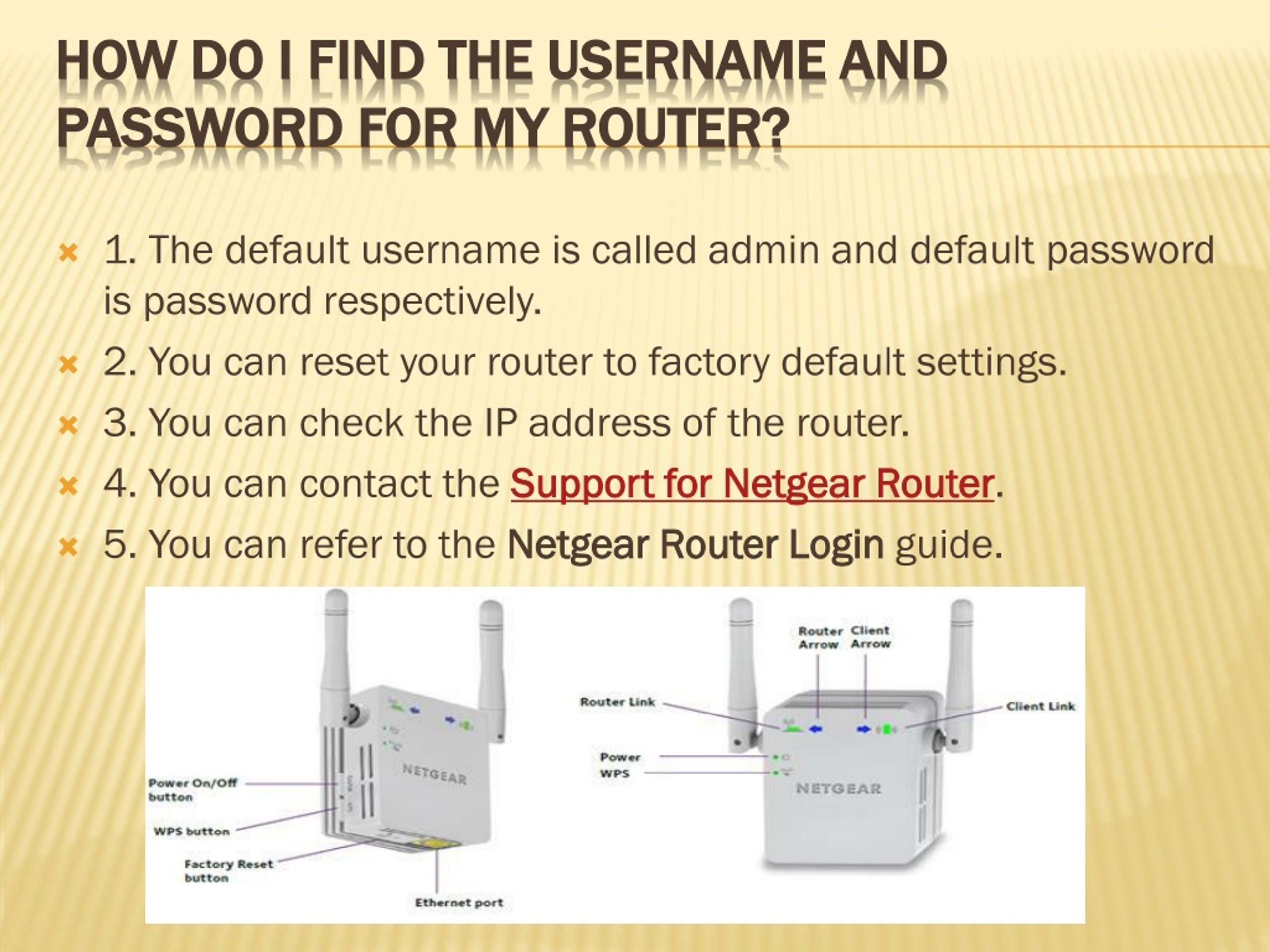
We’ve all been there: lounging on the couch, Netflix buffering, and the Wi-Fi drops. The first suspect is always your router, hiding in a corner like a quiet gatekeeper. But to fix it, you need its username and password—a secret code that feels more elusive than a VIP club password. Don’t worry; this quest is easier than decoding a cryptic tweet. Let’s channel your inner tech detective and crack the case.
Start With The Obvious (But Often Overlooked)
Grab your router and flip it over. Seriously, do it now. Look for a sticker—it’s usually a tiny white label hidden among vents and blinking lights. This sticker is your golden ticket: it holds the default username and password, often printed as “admin” and “password.” Fun fact: over 70% of routers still ship with these factory credentials, so you might already be holding the keys.
If the sticker is faded or peeling, don’t panic. Check the router’s box or the manual you probably tossed in a drawer. Tech companies know we lose things, so many embed the credentials in the device itself. Think of it as a secret handshake—just less cool and more digital.
Must Read
The Digital Detective Work
When the sticker fails, it’s time to go old-school: Google your router’s model number. That string of letters and numbers on the bottom (like “Netgear R6700”) is your breadcrumb. Type it into a search engine, and you’ll find a trove of forum posts and official support pages. A quick search like “default password for [your model]” works, and you’ll often get instant answers.
For a pro move, check RouterPasswords.com—a crowd-sourced database that feels like the Oracle of router logins. It’s saved me more times than I care to admit. Just bookmark it, because future you will thank present you.
When Defaults Don’t Work (The Password Reset)
If someone changed the login and you’re locked out, you need the nuclear option: the reset button. Find a paperclip or a pin—something thin—and press it into the small hole on the router for 10 seconds. This wipes all settings clean, returning it to factory mode. It’s like hitting the undo button on your router’s memory.
Warning: This also resets your Wi-Fi name and password, so be prepared to reconnect every device. That’s the price of a fresh start. Make a note of your new credentials this time—use a sticky note on the router, not on your phone (we both know you’ll lose it).
The “Admin/Admin” Myth Busted
We’ve all typed “admin” and “admin” as a desperate prayer. It works less often than a lucky horoscope. Common combos like “admin/password” or “user/1234” are still surprisingly frequent, though. Brands like Linksys and D-Link love simplicity, so try generic combinations first. It’s the equivalent of trying “123456” at a bank cash machine—optimistic, but not foolish.
Fun fact: Hackers know these defaults too, which is why you should always change them after you log in. Treat your router password like a toothbrush: never use the same one for long, and don’t share it with strangers. A strong password—mix numbers, symbols, and a word that’s not your pet’s name—keeps your network safe.
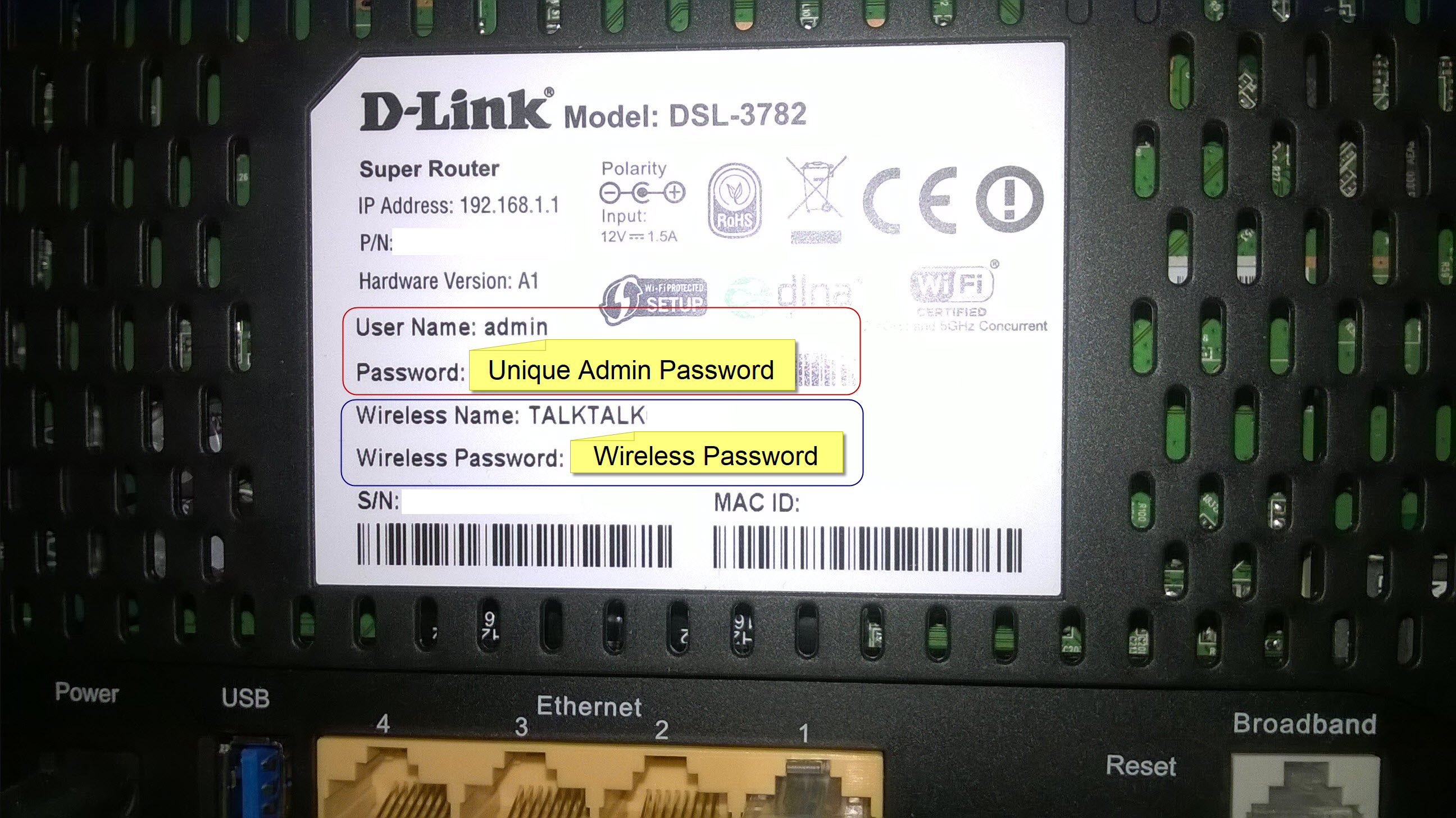 Belkin Router Default Passwords and Usernames | CitizenSide
When All Else Fails: The ISP Lifeline
If the reset button fails or the sticker is missing, call your internet service provider. They have a master key to your router’s backdoor. Tell them your account number and the model, and they’ll walk you through. It’s like calling a locksmith, but with less hardware and more hold music. Most ISPs keep a database of custom defaults for their supplied routers.
Bonus: While on the call, ask if your router’s firmware is updated. Routers are like smartphones—they need updates to stay fast and secure. One call could save you hours of future frustration. Plus, you get to feel like you’re finally in control of your own digital home.
Practical Tips To Keep Your Sanity
Write it down—literally. Put the new username and password on a small index card and tape it to the side of the router. Yes, it’s ugly, but it’s also genius. If you’re a digital minimalist, use a password manager app. Apps like LastPass or Bitwarden can store router credentials in a secure vault, accessible from your phone.
Another hot tip: Check if your router has a QR code. Some modern models print one that, when scanned with your phone camera, loads the login page automatically. It’s the closest thing to a smart-home cheat code. No typing, no guessing—just point and connect.
A Reflection On Control And Connection
Finding your router’s login isn’t just about resetting a password. It’s about reclaiming agency in a world increasingly run by invisible signals. Your router is the unsung hero of daily life—the reason you can stream, work, and order pizza without leaving the sofa. When you unlock it, you’re not just fixing Wi-Fi; you’re honoring the digital backbone of your home.
So next time the Wi-Fi stutters, take a breath. You now have the map to the treasure. That quiet, blinking box in the corner isn’t a mystery—it’s your gateway. And you? You’re the gatekeeper. Go claim your password, update that firmware, and maybe, just maybe, treat yourself to a faster connection.
