How To Mirror From Macbook To Apple Tv

Picture this: you’re curled up on the couch, MacBook on your lap, but that new album or the season finale of Severance feels too small on your screen. The solution isn’t a tan...

Picture this: you’re curled up on the couch, MacBook on your lap, but that new album or the season finale of Severance feels too small on your screen. The solution isn’t a tangle of HDMI cables or a desperate search for a missing adapter. It’s a quiet, wireless miracle called AirPlay, and your Apple TV is the portal.
Mirroring from your MacBook to your Apple TV is less about tech specs and more about reclaiming your living room. It’s the digital equivalent of uncorking a good bottle of wine—simple, satisfying, and best shared. Let’s walk through it, without the jargon.
The Setup: Easier Than Making Coffee
First, ensure your MacBook and Apple TV are on the same Wi-Fi network. This is the golden rule. If they’re arguing over different routers, you’ll get the spinning beachball of doom.
Must Read
Second, check that both devices have Bluetooth enabled, even if you aren’t using a keyboard. Apple’s ecosystem loves a quiet handshake between the two. It’s like they’re whispering passwords to each other in the background.
Third, keep your MacBook within a reasonable range—think the length of a Harry Potter movie, not a cross-country road trip. Obstacles like thick walls or a microwave running nearby can interfere, so keep your setup clean.
The Actual Mirrors: Click, Then Relax
Now, the magic: click the AirPlay icon in your Mac’s menu bar (it looks like a rectangle with a triangle at the bottom). If you don’t see it, go to System Settings > Displays and enable “Show mirroring options in menu bar.” It’s a one-time tweak.
Select your Apple TV from the list. Your screen will flicker, and then—boom—your entire MacBook display appears on the big screen. You’re not just projecting slides; you’re teleporting your digital world to a 65-inch canvas.
For a full-screen experience (think Netflix, YouTube, or a Keynote presentation), click the AirPlay icon again and choose “Mirror Built-in Display.” This stretches everything perfectly, though you’ll notice a slight black border—that’s the overscan safety zone, a relic from old TVs that Apple respects.
Pro Tips for the Modern Couch Potato
Want to use your MacBook as a second screen while mirroring? Go to the AirPlay menu and select “Use as Separate Display.” This turns your Apple TV into an extended desktop—perfect for having Slack on the TV while you doom-scroll X on the laptop. It’s a power move.
Audio sync issues? Apple TV is smart enough to auto-correct lip-sync delays, but if you’re watching a concert or a complex edit, go to the Apple TV’s Settings > Video and Audio > Wireless Audio Sync. Let the remote listen for a test tone. It’s like a meditation session for your sound.
Battery drain is real. Mirroring is a hungry process, so keep your MacBook plugged in if you’re watching a movie longer than 90 minutes. Think of it as topping off the gas before a road trip—you don’t want to run out during the climax.
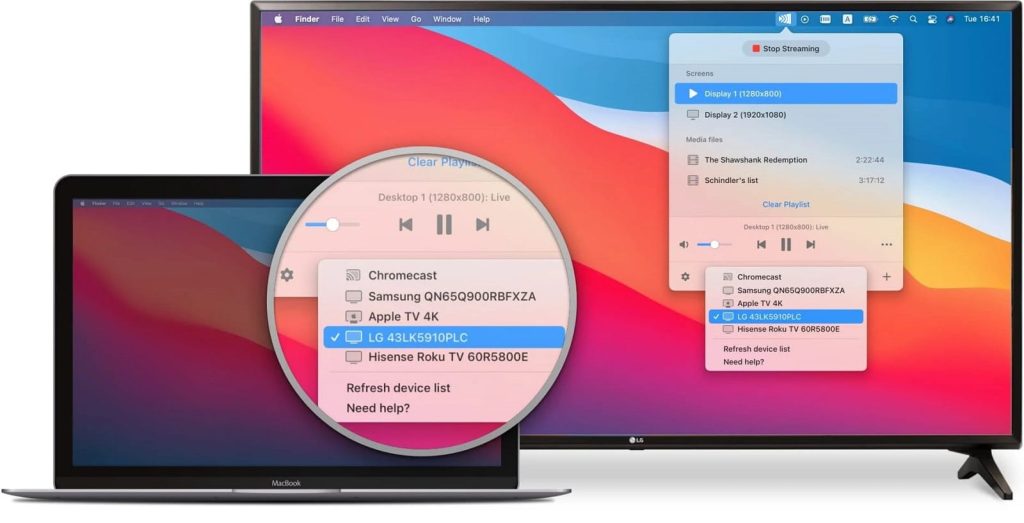 Mirror MacBook to TV: best solutions in 2026
Cultural Touchpoints & Fun Facts
Did you know AirPlay was originally called “AirTunes” in 2004, designed only for music streaming? Steve Jobs famously demoed it with a single song—“The Dock of the Bay” by Otis Redding. Now it handles 4K video and 7.1 surround sound. Progress, baby.
This feature is also why your friends who insist on “just plugging in an HDMI cable” are missing the point. Mirroring is the Zen of connectivity—zero cables, zero adapters, zero shouting at a “No Signal” screen. It’s the minimalist’s dream.
One hidden gem: you can mirror a single app, not your whole desktop. Open a video in QuickTime Player, then click the green “full screen” button and select your Apple TV from the pop-up. The rest of your Mac stays private—great for when you want to watch Succession without coworkers seeing your open tabs.
Troubleshooting: When the Magic Falters
If your MacBook can’t find the Apple TV, restart both devices. I know, it sounds like tech support from 1999, but it works 90% of the time. The other 10%? Check for a software update on both devices—Apple often patches AirPlay bugs silently.
Latency lag is normal for gaming, but not for movies. If your video stutters, lower the streaming quality in the Apple TV’s settings. Or, switch your Wi-Fi to 5GHz instead of 2.4GHz—it’s like moving from a highway to an express lane.
Fun fact: AirPlay 2 supports multi-room audio, meaning you can stream sound from your MacBook to your Apple TV and a HomePod simultaneously. Party trick approved.
The Daily Life Reflection
Mirroring isn’t just a technical convenience; it’s a small ritual of intentional living. In a world of endless notifications, you’re choosing to enlarge the experience—whether it’s watching a documentary, sharing a photo album from a vacation, or finally showing your partner that one meme from your MacBook’s screenshots folder.
It’s the difference between consuming and watching together. The Apple TV becomes a fireplace, and your MacBook is the match. The best part? No one has to get up to adjust the volume. That’s modernity done right.
So next time you’re scrolling through your MacBook, stop at that video, that presentation, that silly GIF. Click the AirPlay icon. Sit back. Let the screen do the heavy lifting. And remember: the only wires in your life should be the ones holding up your headphones—or your wine glass. Cheers.
