How To Remove Items From Kindle

Last week, I nearly threw my Kindle across the room. Not because of a bad book—no, I was trying to find a specific novel in my library, and I had to scroll through three hundr...

Last week, I nearly threw my Kindle across the room. Not because of a bad book—no, I was trying to find a specific novel in my library, and I had to scroll through three hundred titles I hadn’t touched since 2015. You know that feeling, right? The digital equivalent of a messy garage, but with zero physical boxes to toss.
So, I decided it was time to Marie Kondo my virtual bookshelf. The good news? Removing items from a Kindle is easier than untangling headphones (barely). Let me walk you through it, and I promise—no judgment for the embarrassing self-help phase you went through in 2018.
The Two Main Approaches: Delete vs. Remove
First, a tiny but crucial distinction. Deleting a book from your Kindle device does not erase it from your Amazon account. Think of it as hiding a messy sweater under the bed—it’s still there if you need it. Removing it permanently from your account is like donating it to Goodwill; it’s gone for good.
Must Read
Which one do you want? Probably the first option, unless you truly hate that particular book. (I’m looking at you, How to Organize Your Closet in 10 Easy Steps.)
Option 1: Clearing Your Kindle Device (The “I’m Just Tidying Up” Method)
Grab your Kindle and go to your Library. Tap and hold the cover of the book you want to banish. A menu will pop up—select “Remove from Device.” That’s it. Gone from your screen, but still stored in your Amazon cloud.
Feeling ambitious? You can do this in bulk. On the home screen, tap the three dots (top right), choose “Manage Your Content and Devices,” and tick multiple titles. Then hit “Remove from Device.” It’s like hitting Ctrl+Z on your bad reading habits—instant relief.
Side note: This doesn’t affect your highlights or notes. They’ll still be saved online. So your deep thoughts about that romance novel? Safe and sound.
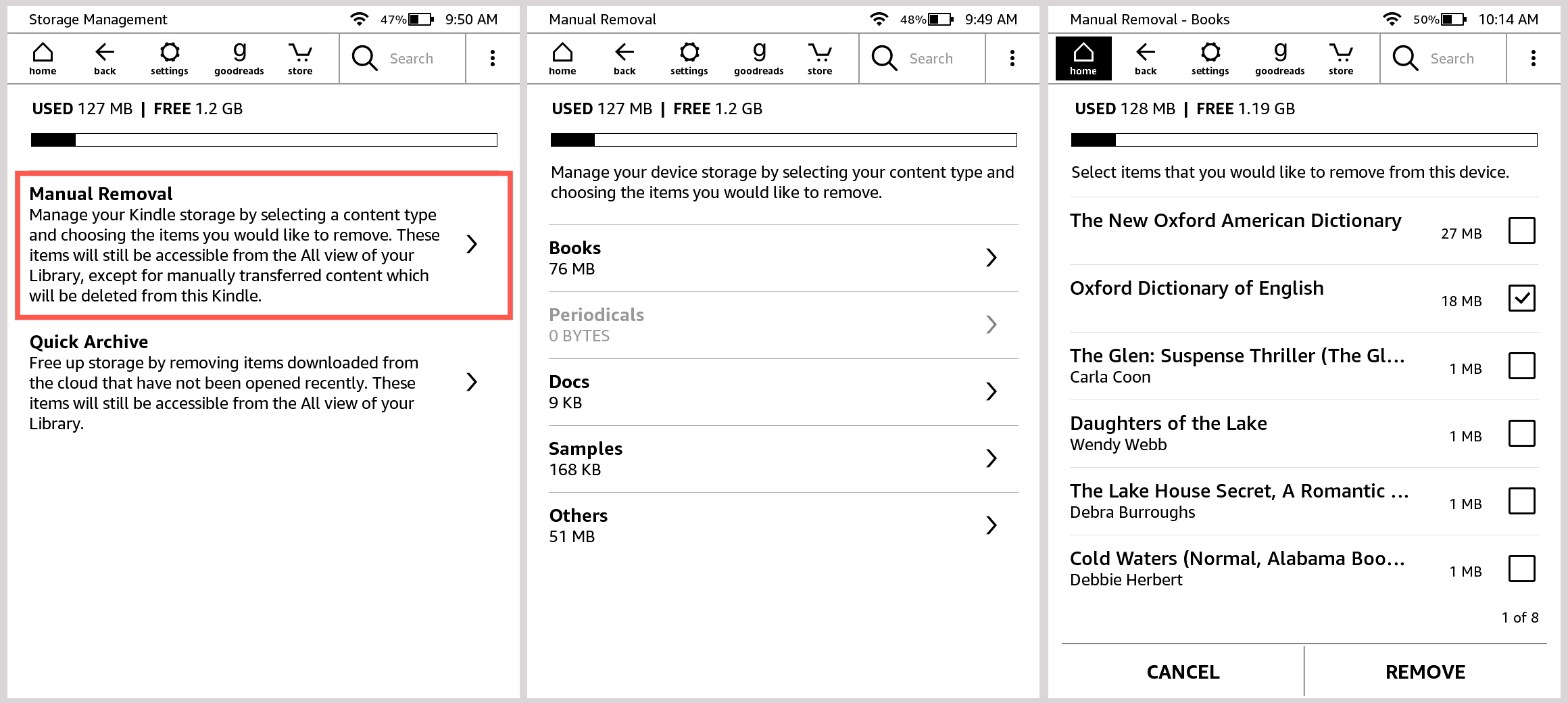 How to manage storage space on a Kindle Paperwhite
Option 2: Permanent Deletion (The “We Need to Break Up” Method)
This is for the books you know you’ll never touch again. Maybe it’s a free sample you clicked by accident, or that thriller your coworker pressured you into reading—and you hated it. Go to Amazon’s website (not your Kindle app). Log in, then click “Account & Lists” > “Content and Devices.”
Find the offending book. You’ll see a “Delete” button—usually with a little red warning that says “This action is permanent.” Click it. Poof. No take-backs. (Unless you email Amazon support, which is like begging an ex to return your Tupperware.)
Be careful: You cannot re-download this book for free if you delete it permanently. So unless you’re absolutely sure, stick with the “Remove from Device” method first. Sleep on it. Maybe you’ll miss that cheesy sci-fi novel after all.
What About Kindle Unlimited or Library Loans?
Oh, this is where it gets weird. If you’re using Kindle Unlimited, books automatically expire when you return them. But sometimes they linger like a guest who won’t leave the party. To manually kick them out, go to “Manage Your Content and Devices,” find the title, and click “Return” (under the Kindle Unlimited section).
 How to remove books from Kindle?
For library loans (via Libby or OverDrive), just let the due date pass. Your Kindle will gently delete it for you. Or you can return it early by going to “Manage Your Content and Devices” and clicking “Return Library Book.” Pro tip: Do this before the due date if you want to be a hero to the next person waiting in line.
Dealing with “Archived” Items (The Invisible Graveyard)
Ever notice that some books just disappear from your Kindle but show up in your account as “Archived”? That’s Amazon’s polite way of saying, “You still own this, but we hid it so you wouldn't panic.” To see them, go to your Amazon account, click “Content and Devices,” and look for the “Show Archived Items” toggle. You can then delete or restore them.
It’s like finding old photos in a shoebox under your bed. Except the shoebox is digital, and the photos are books you bought at 2 AM after a glass of wine.
One Last Thing: The “Download & Transfer via USB” Trap
Avoid deleting books you’ve transferred via USB (like side-loaded files). If you delete those from your device, they might vanish forever from your account. Amazon doesn’t always back them up. Always back these up on your computer first. Trust me, I learned this the hard way and lost a rare copy of a cookbook. (The recipe for disaster was real.)
Now go ahead—declutter that Kindle. Remove the guilt, keep the joy, and maybe, just maybe, leave room for one more impulse buy next month. You know you will.
