How To Write Piecewise Functions In Desmos

So, you’ve been clicking around Desmos, making beautiful graphs, and suddenly you hit a wall. You want a function that acts one way, then completely changes its mind halfway a...
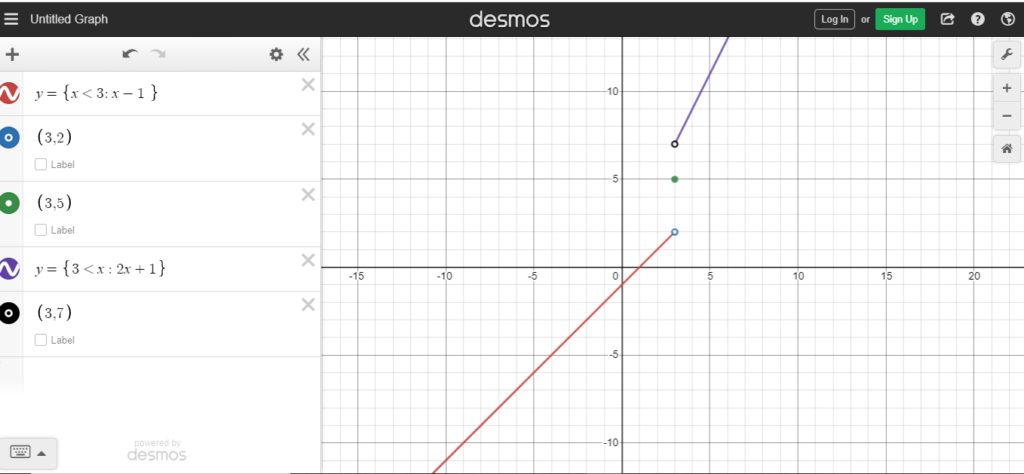
So, you’ve been clicking around Desmos, making beautiful graphs, and suddenly you hit a wall. You want a function that acts one way, then completely changes its mind halfway across the graph. What gives? That, my friend, is a piecewise function, and it’s way easier to write than you think.
Honestly, it feels like giving your graph a split personality, which is kind of cool, right? Imagine a rollercoaster that suddenly turns into a gentle slide. That’s the magic of piecewise: your function can be one thing here, and something totally different over there.
Let’s start with the basics. You know how you normally type y = x^2? A piecewise function is like saying, “Yeah, do that, but only for a little while.” You type the function, then you tell it the “domain” – the x-values where it’s allowed to play.
Must Read
In Desmos, it looks like this: y = {x < 0: x^2}. That little curly bracket is your boss. It says, “If x is less than 0, then graph x squared.” Otherwise? Nothing. It’s like a bouncer at a club: only specific x-values get in.
But wait – what if you want two different rules? That’s where the fun really begins. You just keep stacking conditions with commas inside one big set of curly brackets. Think of it like a choose-your-own-adventure book for your graph.
For example: y = {x < 0: x^2, x >= 0: sqrt(x)}. See what happened? On the left side (negative numbers), you get a parabola. On the right side (zero and above), you get a square root curve. It’s two totally different worlds, living together in harmony.
It’s a little weird at first, because Desmos uses a special grammar. You don’t use “if” or “then.” Instead, it’s all about the colons and commas. The colon separates the condition from the function. The comma separates one piece from the next.
Why is this actually useful?
Honestly, piecewise functions aren’t just math homework torture. They model real life. Think about a taxi meter that charges a flat fee for the first mile, then a different rate after that. That’s a piecewise function! Your phone bill, income taxes, even the speed of a car that accelerates and then cruises – it’s all piecewise.
Desmos makes you feel like a wizard because you can see these messy real-world rules turn into a single, smooth graph. You’re not just doing math; you’re telling a story with numbers and dividing it into chapters.
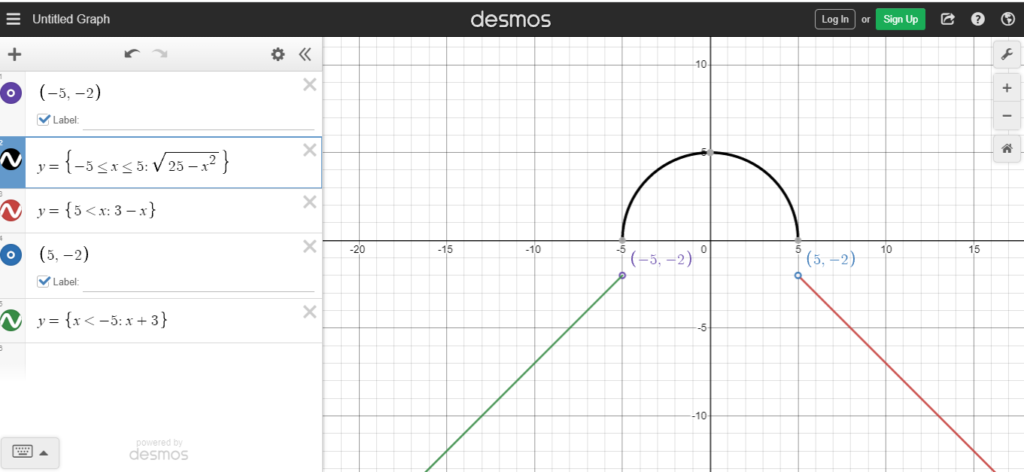 How to do piecewise functions on Desmos Graph Calculator?
The trick you need to know
Here’s the chill pro tip: use parentheses for conditions that include the boundary. If you want a solid dot or an open circle? Desmos handles that automatically if you use close (like x ≤ 0) or open (like x < 0) inequalities. Just be careful with your signs – a tiny typo can send your graph to Narnia.
Also, you can make the graph look even cooler by graphing two different equations as separate pieces. For a truly wild ride, try y = {x < 0: x^2, x > 0: -x^2}. Watch that parabola flip upside-down mid-air. It’s like a graph doing a backflip.
What about three pieces? Go for it. Just keep adding commas: y = {x < -1: 1, -1 <= x < 1: x, x >= 1: 1}. This creates a flat line on the sides, and a slanted line in the middle. It’s like a graph wearing a little hat.
Not sure if your function is working? Desmos will show you a hint in red if you mess up. Don’t panic. Usually, it’s just a missing parenthesis or a comma in the wrong spot. Breathe, fix it, and watch the graph appear.
And here’s the secret most tutorials won’t tell you: you can use piecewise functions to mask parts of a graph. Want only the positive part of a sine wave? y = {x > 0: sin(x)}. Boom. You just became a digital sculptor.
So next time you’re messing around in Desmos, try giving your graphs a secret second life. It’s like being a director who tells the actors exactly when to come on stage. Piecewise functions let you control the show, one condition at a time.
What will you make? A bridge? A heartbeat? A graph that looks like a mountain range? The only limit is your tolerance for typing curly brackets. Go ahead, give it a shot. You might just find that math gets way more interesting when you let it change its mind.
